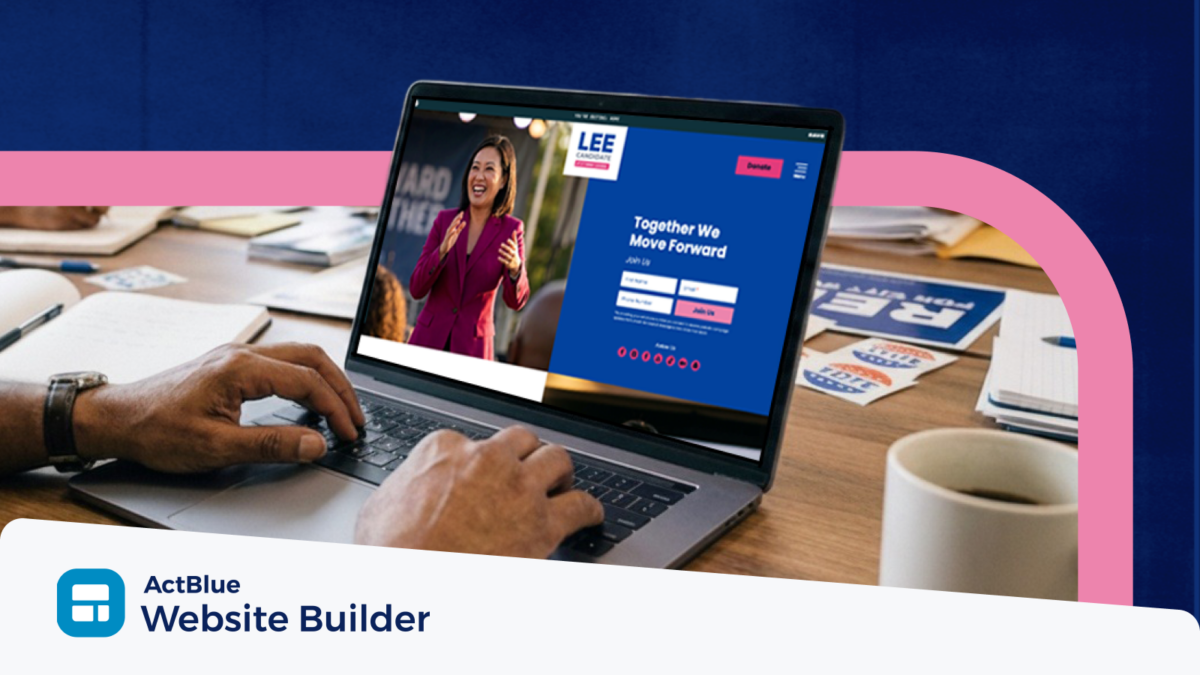
Building a campaign website means making a lot of small decisions fast: which platform to use, whether to buy a domain, what goes on each page, and how to connect your donation forms. If you’re also handling filing paperwork, talking to voters, and a day job, you need a site that’s quick to set up and easy to keep updated.
ActBlue has supported Democratic candidates for more than two decades, and we built Website Builder so all campaign can launch a professional, credible site with fundraising connected from day one. Below, we cover each step of building a campaign website, from choosing a platform and web address and writing your core pages to setting up donations and keeping everything current through Election Day.
Step 1: Determine your goal
Start by getting clear on what your website needs to do. For most local candidates, that means your site should:
- Introduce you. Who you are, why you’re running, and what office you’re running for.
- Explain your priorities. Three to five issues, in plain language, tied to the office.
- Raise money. A donate button that works on every page, especially on mobile.
- Recruit help. A way for supporters to volunteer, get a yard sign, or join your email list.
- Answer basic questions. Election date, district, and how to reach the campaign.
Everything on your site should support one of these jobs. If a page doesn’t, cut it or save it for later. A five-page site that loads fast and makes it easy to donate will do more for your campaign than a 20-page site you can’t keep updated.
Step 2: Choose your platform
You’re likely facing two options: a general website builder (think Squarespace or Wix, the ones small businesses use) or a website builder made for political campaigns.
General builders give you lots of design flexibility, but they weren’t built with fundraising in mind. To accept donations, you’ll usually need to set up a separate fundraising tool, then embed or link to it and make sure the two stay in sync. That adds setup time right when you’re trying to launch.
A campaign-specific builder handles that for you. With ActBlue Website Builder, fundraising is connected from day one, with no setup needed. Your donate buttons go straight to your ActBlue forms, so supporters can give in a few taps, including with ActBlue Express.
When choosing a website builder for your campaign, ask:
- Can I accept donations without setting up and connecting a separate tool?
- Does the site look good and load quickly on a phone?
- Can someone on my team update it without knowing code?
- What’s included in the price (hosting, a web address, templates)?
Read more about the tradeoffs in our analysis of generic vs. campaign website builders.

Step 3: Select your web address
Your web address (or domain) is what people type to find your site, like janeforschoolboard.com. A custom domain looks polished and is easy to put on yard signs and palm cards, but you don’t need one to launch.
Website Builder includes an ActBlue-hosted address, so you can go live right away and add a custom domain later if you want one. If you do buy a domain, keep it:
- Short and easy to spell. Your name plus the office or year usually works (smithforcouncil.com, votesmith2027.com).
- Free of hyphens and odd spellings. People will hear it out loud at doors and events.
- Registered to the campaign. Use a campaign email, not a volunteer’s personal account, so you don’t lose access.
Not sure whether it’s worth it yet? Read Do You Need a Custom Domain for Your Campaign Website?
Step 4: Write your core pages
Most local campaign websites need five pages. Start with these and add more only when you have something to put on them.
Homepage
Lead with your name, the office you’re running for, and a one-sentence reason you’re running. Put a photo of you and a donate button above the fold. Add a short email sign-up so visitors who aren’t ready to give can still stay in touch.
About
This is your candidate bio. Share where you’re from, what you’ve done in the community, and why this office matters to you. Write in first person if it feels natural, and keep it to a few short paragraphs. For help, see How to Write a Candidate Bio.
Issues
Pick three to five priorities that the office can actually affect. A school board candidate might focus on class sizes, teacher retention, and the district budget. For each issue, say what you’ll do in office.
Get involved
Give supporters a few clear options: volunteer, request a yard sign, host a meet-and-greet, or join your email list. Keep the form short. Name, email, ZIP code, and how they want to help is usually enough.
Donate
Your donate page should be one click from anywhere on the site. Explain briefly what donations pay for (yard signs, mailers, digital ads) so supporters can see where their money goes.
Step 5: Add photos and a consistent look and feel
A clear, recent headshot belongs on your homepage and About page. A few candid shots of you talking with neighbors, at a school event, or in your district help people picture you in the role.
You don’t need to book a photographer or spend thousands of dollars; just good light and a sharp image. Our guide on how to take your own campaign headshot covers how to get a professional one on a budget.
For the rest of the design:
- Pick two or three colors and use them everywhere: your site, signs, mailers, and social posts.
- Use one or two fonts that are easy to read on a phone.
- Keep your logo simple. Your name and the office in a clean typeface works fine.
When your site matches your yard signs and mailers, people recognize your name faster.
Step 6: Set up donations and volunteer sign-ups
Make giving and signing up as easy as possible.
For donations:
- Put a donate button in the header so it’s on every page.
- Suggest a few amounts that fit your race. For a local campaign, that might start as low as $10.
- Offer a recurring option so supporters can give monthly through Election Day.
- Test the full donation flow on your phone before you launch.
If you build with Website Builder, your site is already connected to your ActBlue fundraising, so your forms, donor data, and reporting stay in one place.
For volunteers, ask for the minimum you need to follow up, and follow up fast. Someone who signs up to knock doors on Tuesday and doesn’t hear back until next month probably won’t show up.
Step 7: Cover the legal basics
Campaign websites come with a few rules that personal or business sites don’t. Requirements vary by state and office, so check with your state or local election office before you launch. Common ones include:
- A “paid for by” disclaimer. Many states require campaign websites to say who paid for them, usually in the footer (for example, “Paid for by Friends of Jane Smith”).
- Contribution limits and donor information. Your donation forms may need to collect details like employer and occupation, depending on your state’s reporting rules.
- Image and content rights. Only use photos, logos, and music you have permission to use.
If you’re unsure about a requirement, ask your treasurer or a campaign finance attorney.
Step 8: Launch, share, and keep it updated
Before you go live, have two or three people click through every page on their phones. Ask them to try donating, signing up, and finding the election date. Fix anything that confuses them.
Then put your web address everywhere: your email signature, social media bios, yard signs, palm cards, and filing paperwork where allowed.
After launch, set a regular time to update the site, even if it’s just once every week or two. Add endorsements as they come in, post upcoming events, and refresh your homepage as Election Day gets closer. In the final weeks, make the election date and polling information easy to find. Remove past events so visitors only see what’s coming up.
Our campaign website checklist breaks down what to publish at each stage, starting with a simple launch-day version and building out as Election Day gets closer.
Start simple and build as you go
You don’t need every page finished before you launch. Get the core pages live, make it easy to donate and volunteer, and keep it updated as your campaign grows. Launching early with a working donate button means you can start raising money sooner.
Launch a professional campaign website with fundraising built-in
Website Builder makes it easy to get your campaign online and keep it current. Pick a template made for campaigns, add your story and priorities, and publish on an ActBlue-hosted address. Every site is accessible and optimized for search, and you can make updates yourself from anywhere, with no tech experience needed.
Because Website Builder is powered by Raise by ActBlue, your fundraising is ready to go, too. Your donate buttons connect to your forms automatically so supporters can chip in from any page. Website Builder is $40 per month with no setup fees, and Raise has a 3.95% processing fee on all donations.
Learn more about how ActBlue can support your local campaign.
Built for you. Built to win.
- Fundraising
- Field Tools
- Website Builder